






Sequence Wiz electronic health records system for yoga therapists

Step 3: Set up scheduling

Put your stamp on it

Activate student portals

Set up scheduling

Make your forms

Get to know your student

Create effective practices

Record student’s journey

Deepen your expertise

Mobile scheduling

Managing your schedule manually with back and forth emails, double bookings, and forgotten appointments takes time you’d rather spend on your students. Your scheduling should work for you, not against you.


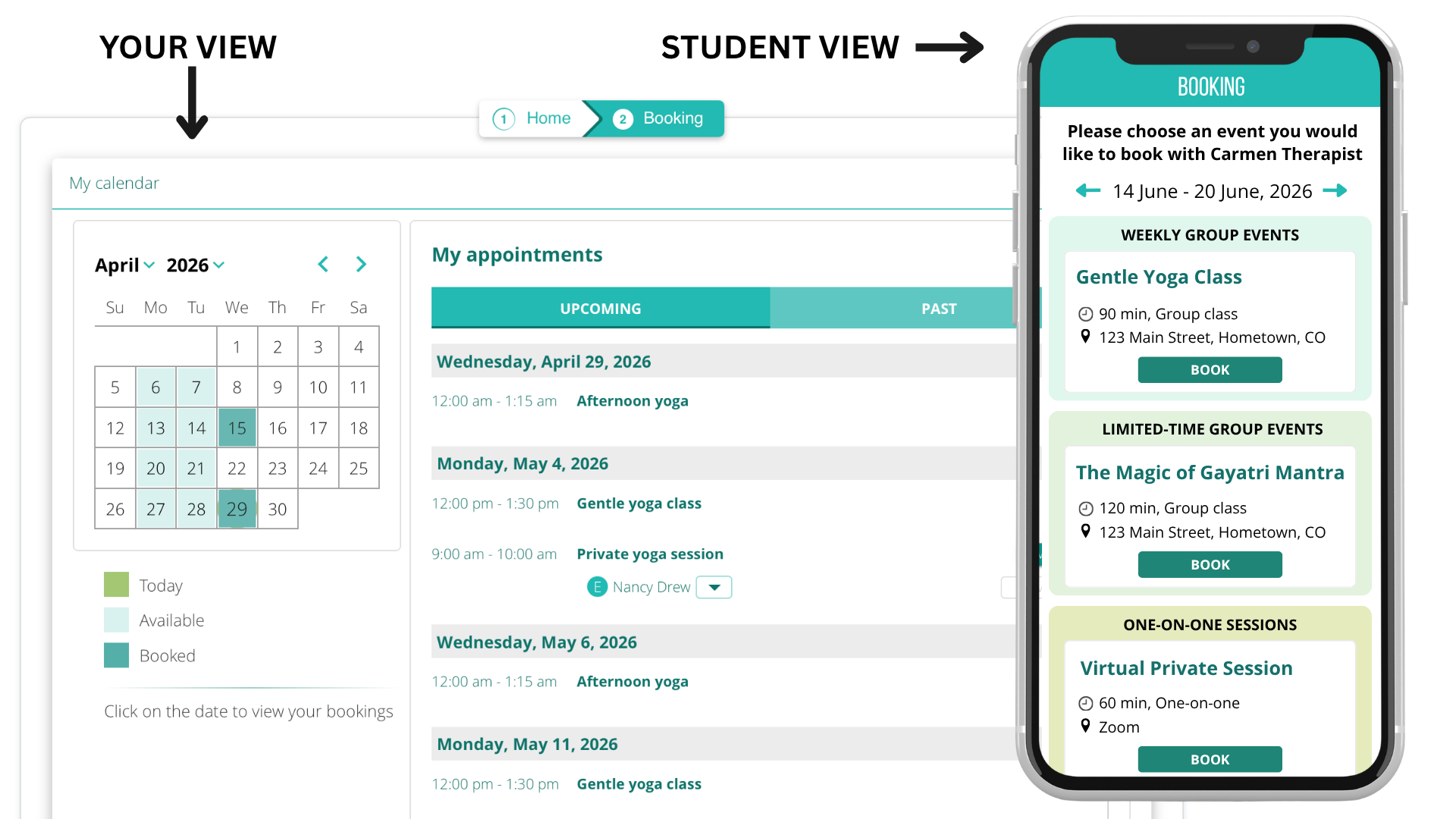
With Sequence Wiz scheduling, you share your real-time availability and your students book themselves in for private sessions, recurring classes, or workshops directly from their phone. It integrates with Zoom or Doxy for online sessions and automatically syncs with your calendar. For your student, booking a session is as simple as tapping a link in your email, on your website, or directly from their portal. 


EASY TO USE FOR YOUR STUDENTS

  • Book anything, anytime — private sessions, recurring classes, or workshops — your students can schedule directly from their phone, whenever it suits them
  • All events in one view — upcoming private sessions, classes, and workshops are all visible in one simple, mobile-friendly dashboard
  • Online sessions made easy — Zoom or Doxy links are automatically included in their booking confirmation, so joining a session is always just one tap away

Getting started is simple:

To get started with the Sequence Wiz scheduling system, click on Booking.


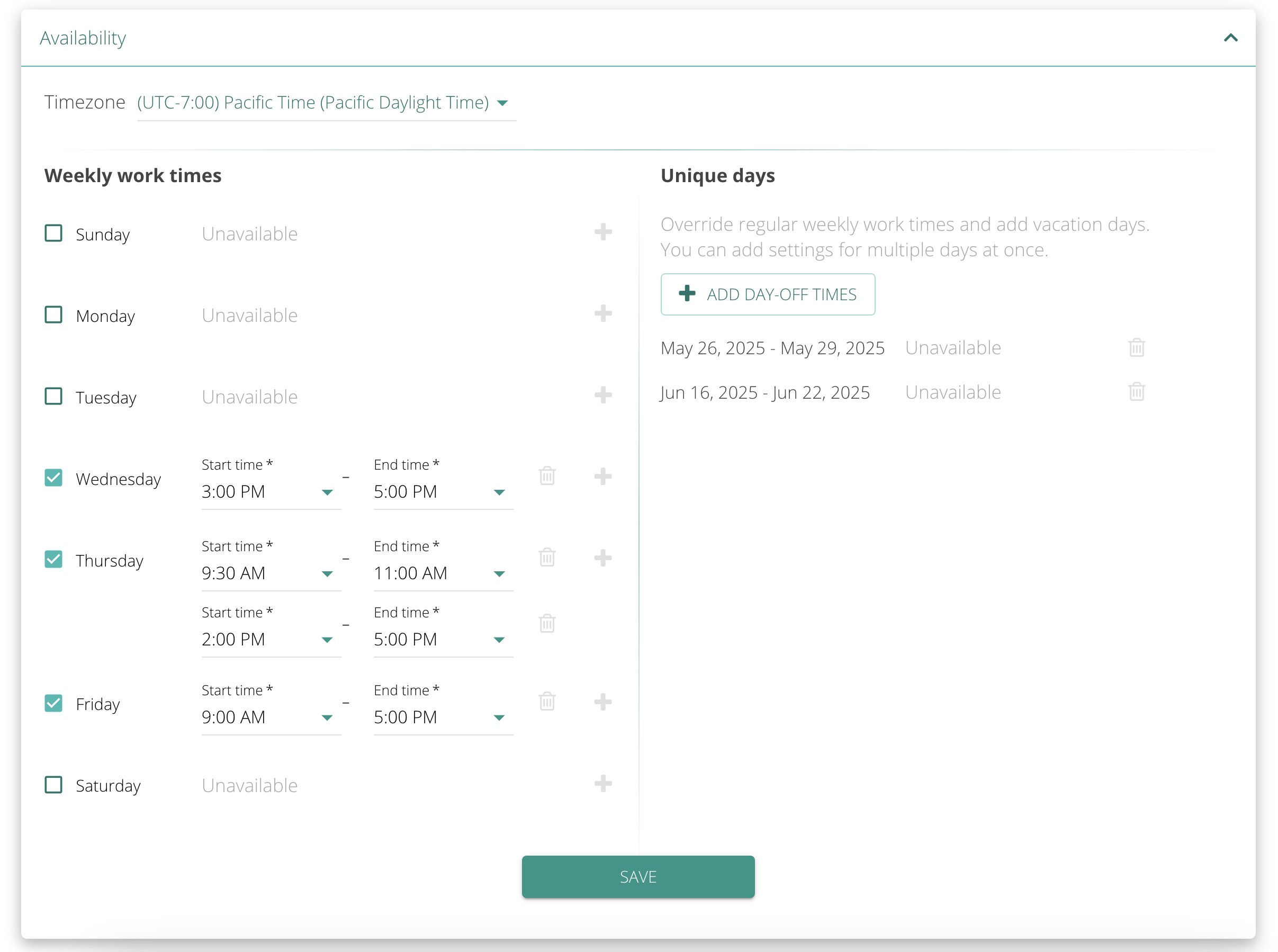
To set up your availability schedule, go to the Availability tab and choose all the time periods during the week when you are available for booking. Students will be able to book one-on-one appointments with you during those times. This schedule will not affect your group events. 

Here, you can also block out unique days, like vacations, when you will not be available.

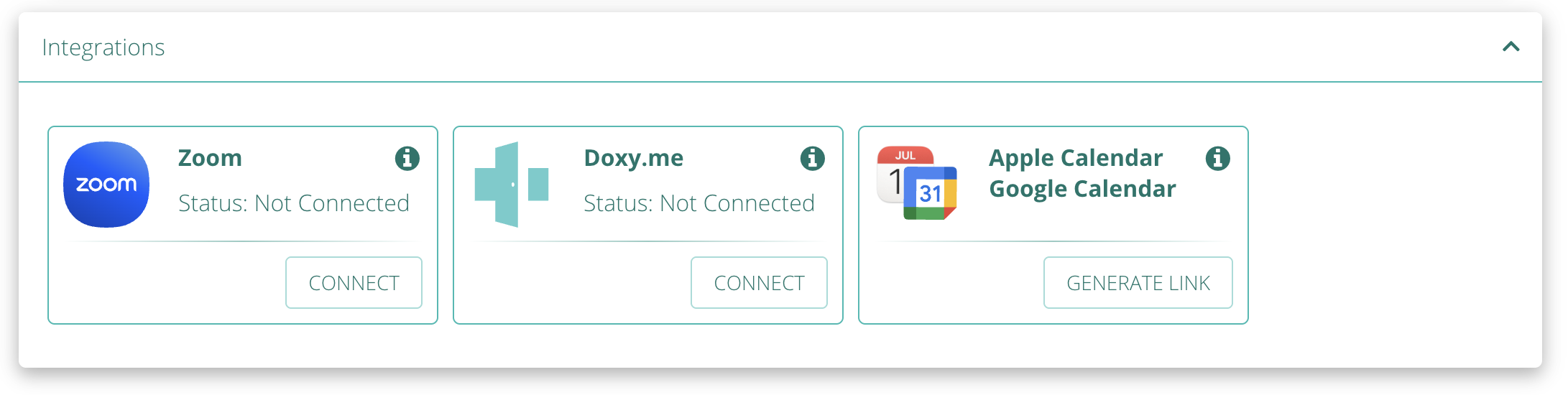
Sync with Zoom, Doxy, and your Apple or Google Calendar to keep everything in one place.

To set it up, go to Booking > Integrations tab. Choose the service you wish to connect, click on CONNECT button and follow instructions.  To link your calendar(s), click on GENERATE LINK and add the link to your calendar.


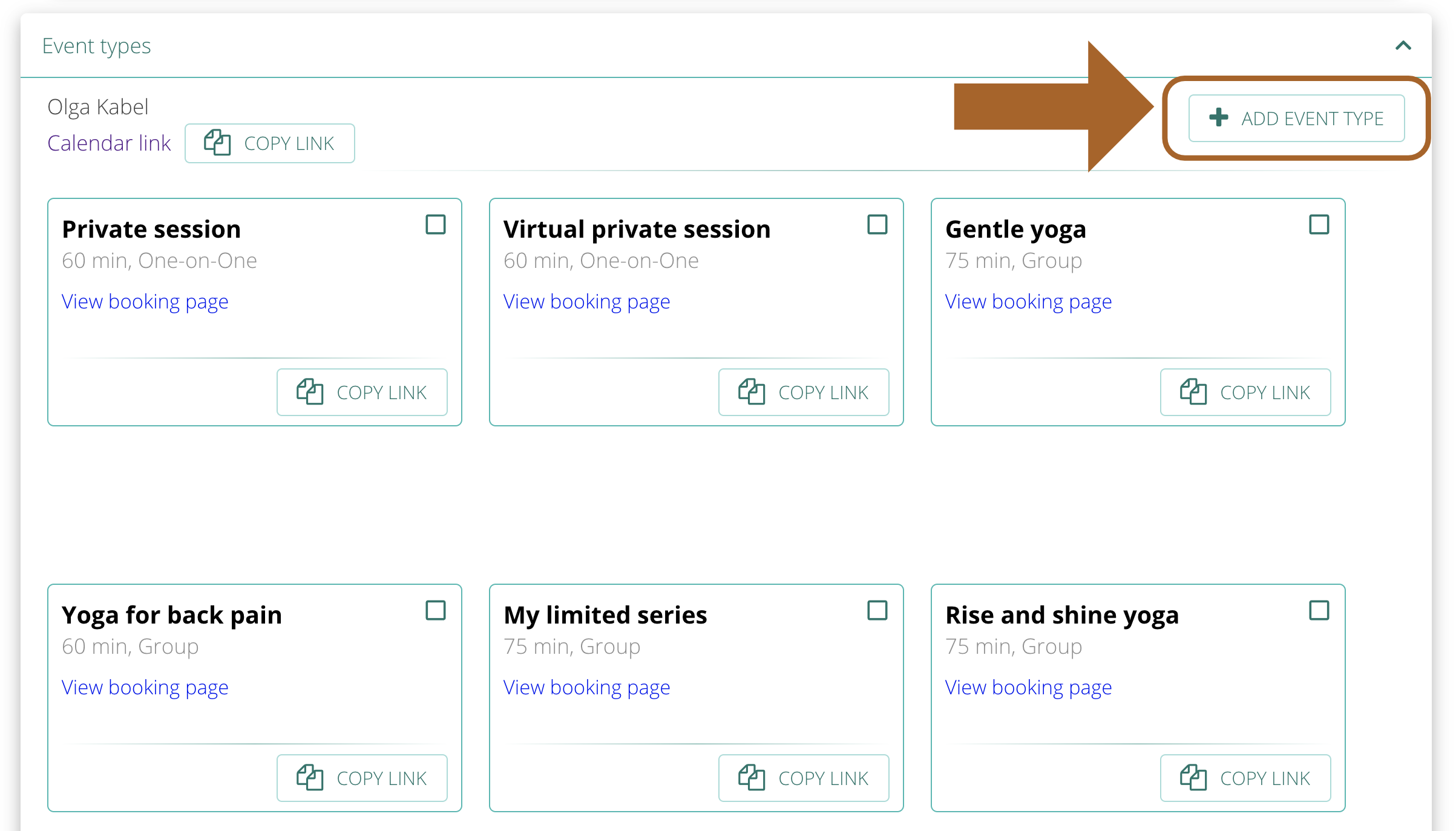
You can create different types of events that you teach for booking. The events can be one-on-one or group, virtual or in-person, and recurring. The event times don’t have to fit into your availability window. To create a new event, go to Event Types and click on ADD EVENT TYPE. Once the event is created, it will be available for booking. You will have to connect your Zoom account to book online events.


You can preview a booking page for each event by clicking on View booking page.

Set up scheduling

Do you need any help?

Visit out HELP SITE to find answers to all your question or fill out the contact form on the site to get help.